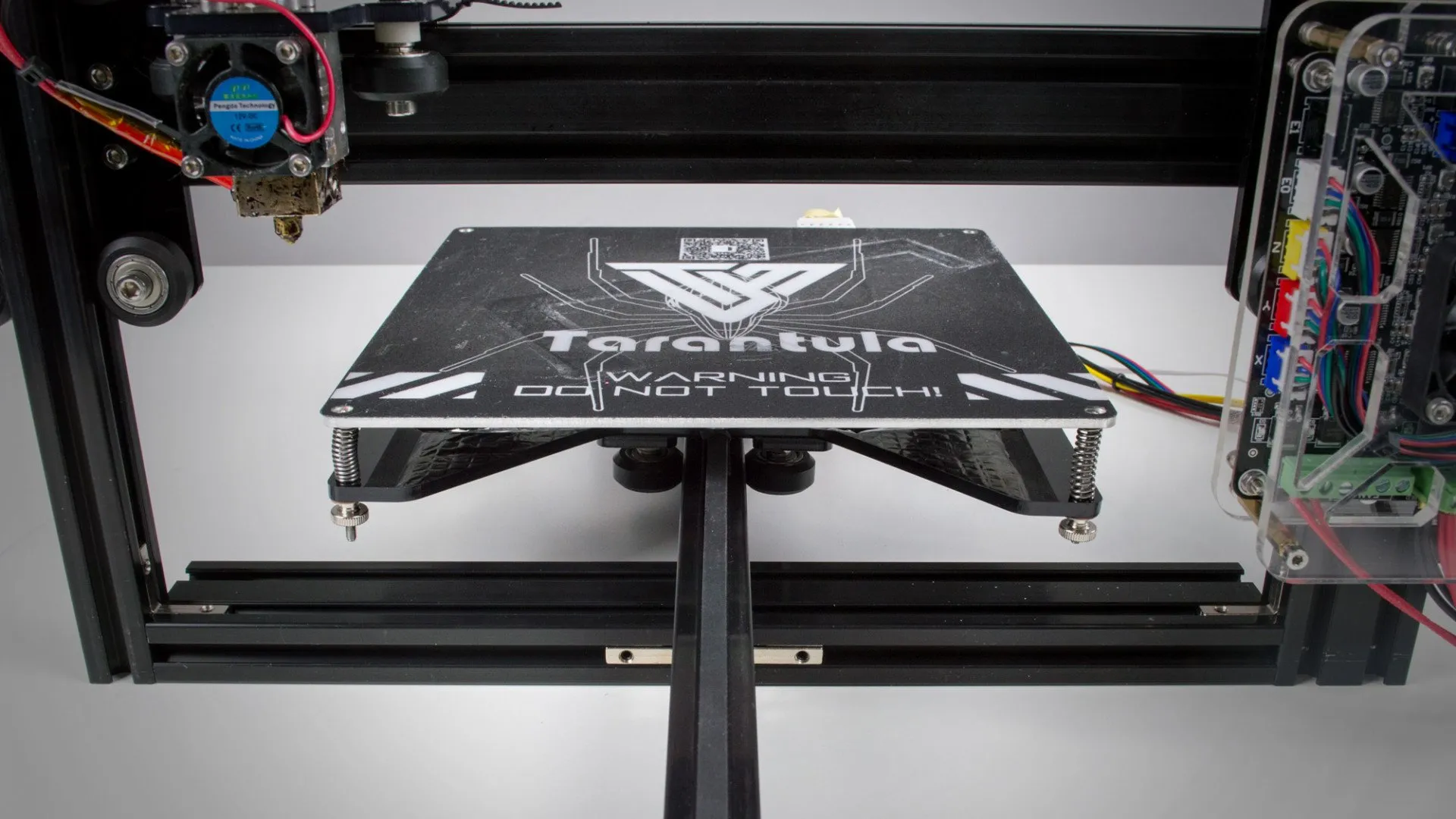
Understanding Your Tevo Tarantula Pro and Cura
The Tevo Tarantula Pro is a popular and accessible 3D printer, well-regarded for its affordability and ease of use. To get the best results from your Tevo Tarantula Pro, understanding how to configure Cura, a powerful and widely used 3D printing slicer, is essential. Cura translates your 3D models into instructions that your printer can understand, determining how it will build the object layer by layer. This article provides a comprehensive guide to optimizing Cura settings for the Tevo Tarantula Pro, helping you achieve high-quality prints.
Why Cura is Ideal for Your Tevo Tarantula Pro
Cura is a free, open-source slicing software that’s particularly well-suited for the Tevo Tarantula Pro. Its user-friendly interface, extensive customization options, and constant updates make it a top choice for both beginners and experienced users. Cura supports a wide variety of 3D printer models and filaments, providing a versatile platform for experimentation. Furthermore, Cura’s robust settings management allows you to save and load profiles, making it easy to switch between different materials and print settings for your Tevo Tarantula Pro, streamlining the printing process.
Key Cura Settings for Tevo Tarantula Pro Explained

Several settings significantly impact the quality of your prints. Understanding and adjusting these parameters is the key to unlocking the full potential of your Tevo Tarantula Pro. We’ll cover the most critical settings, including print temperature, bed temperature, print speed, layer height, and retraction settings. Each of these elements plays a crucial role in achieving successful prints. Fine-tuning these parameters based on the filament type and the complexity of your 3D models can dramatically improve your print quality and reduce print failures.
Print Temperature Achieving the Sweet Spot
Print temperature is the temperature at which the filament melts and is extruded through the nozzle. Finding the optimal print temperature is vital for good layer adhesion and print quality. If the temperature is too low, the filament may not melt properly, leading to under-extrusion and weak layers. If the temperature is too high, the filament may become too fluid, leading to stringing and oozing. The ideal temperature varies depending on the filament type. Start with the manufacturer’s recommended temperature range for your filament and adjust it in small increments until you achieve the best results. Consider using a temperature tower test print to dial in your settings.
First Layer Adhesion The Foundation of Success
First layer adhesion is critical for successful prints. If the first layer doesn’t stick to the print bed, the print will likely fail. Ensure your print bed is clean and level before printing. Adjust the initial layer height to improve adhesion, often slightly higher than the standard layer height. Setting the bed temperature to the recommended level for the filament type is also crucial. Using a brim or raft can also significantly improve first-layer adhesion, especially for models with small footprints or complex geometries. Experiment with these settings until you get consistently good adhesion.
Bed Temperature Optimizing for Filament Types

Bed temperature affects the adhesion of the first layer and helps to prevent warping, especially with materials like ABS. The correct bed temperature depends on the type of filament you are using. PLA generally requires a bed temperature of 50-60°C, while ABS often needs 90-110°C. PETG usually works well at 70-80°C. Always refer to the filament manufacturer’s recommendations. A heated bed helps the plastic to cool slowly and reduces the stress that can cause warping. Ensure your bed is properly leveled to maintain consistent temperature distribution.
Print Speed Balancing Speed and Quality
Print speed directly influences the print time and the quality of your prints. A slower print speed generally results in better quality, especially for intricate details and overhangs. However, a slower speed also means longer print times. The optimal print speed will depend on your filament type and the complexity of your model. For most filaments, a print speed of 50-60 mm/s is a good starting point. For high-quality prints, you may want to reduce the speed to 30-40 mm/s. For large, simple models, you can increase the speed to 70-80 mm/s. Experiment to find the best balance between speed and quality.
Layer Height Fine-tuning Print Resolution
Layer height determines the vertical resolution of your prints. A smaller layer height results in smoother surfaces and finer details but increases print time. A larger layer height results in faster print times but may show visible layer lines. For most general-purpose prints, a layer height of 0.2 mm is a good compromise. For higher detail prints, you can use a layer height of 0.1 mm or even smaller. For very fast prints where surface finish is less important, you might use a layer height of 0.3 mm. The nozzle diameter also affects your layer height choice.
Retraction Settings Preventing Stringing and Blobs

Retraction settings control how much the filament is pulled back into the nozzle when the print head moves between different parts of the model. Proper retraction is crucial for preventing stringing (thin strands of filament) and blobs. The retraction distance, which is the amount the filament is pulled back, and the retraction speed, which is how quickly the filament is pulled back, are the key settings. Start with a retraction distance of 6 mm and a speed of 45 mm/s, then adjust them based on your filament type and printer setup. Too little retraction and you get stringing. Too much retraction can cause jams.
Filament Settings PLA, ABS, PETG and More
Different filaments require different settings to print successfully. PLA is generally easy to print with, requiring a lower temperature and often no heated bed. ABS requires a higher temperature and a heated bed to prevent warping. PETG is a good compromise, offering good strength and flexibility. Here’s a brief overview:
- PLA generally prints at 190-220°C with a bed temperature of 50-60°C.
- ABS typically needs 230-250°C with a bed temperature of 90-110°C.
- PETG usually prints at 220-250°C with a bed temperature of 70-80°C.
Always refer to the manufacturer’s recommendations for the specific filament you are using. Other factors like environmental conditions can impact the ideal settings.
Troubleshooting Common Print Issues with Cura
Even with optimized settings, you may encounter print problems. Here are some troubleshooting tips for common issues.
Stringing

Stringing occurs when thin strands of filament connect different parts of your print. To fix this, increase the retraction distance and/or speed. Lowering the print temperature slightly can also help. Ensure your nozzle is clean and not leaking.
Poor Bed Adhesion
If your prints aren’t sticking to the bed, clean the bed surface thoroughly, level the bed properly, and increase the bed temperature. Using a brim or raft can significantly improve adhesion. Applying a thin layer of glue stick or painter’s tape can also help.
Warping
Warping is when the edges of your print lift off the bed. This issue is most common with ABS. To combat warping, use a heated bed, enclose your printer to maintain a consistent temperature, and ensure proper bed adhesion. A brim can also help prevent warping.
Optimizing Cura for Different Filament Types

Different filaments behave differently, so the Cura settings need to be adjusted accordingly. The following are generalized settings, always consult the filament manufacturer’s specifications.
PLA
PLA is a good starting point due to its ease of use. Typical settings include a print temperature between 190-220°C, a bed temperature of 50-60°C, and a print speed of 40-60 mm/s. Retraction settings are typically 6mm at 45mm/s.
ABS
ABS requires a higher temperature and a heated bed. Use a print temperature between 230-250°C and a bed temperature of 90-110°C. Print slowly, around 30-40 mm/s, and consider enclosing your printer to maintain temperature stability. Retraction settings remain similar to PLA, but adjust as needed for stringing.
PETG

PETG offers a balance between ease of use and strength. A print temperature of 220-250°C and a bed temperature of 70-80°C usually work well. Use a print speed similar to PLA, around 40-60 mm/s, and slightly adjust retraction settings to minimize stringing.
Advanced Cura Settings for Tevo Tarantula Pro
Beyond the basics, more advanced settings can further refine your prints. These settings can greatly improve the quality and functionality of your prints, especially for complex models and challenging filaments.
Infill Settings Strength and Print Time
Infill is the internal structure of your prints. Infill density affects the strength and print time. A higher infill percentage means a stronger print but takes longer to print. Common infill patterns include lines, grid, and triangles. Experiment with different infill patterns to find the right balance of strength and speed for your prints. 20% infill is a good starting point for general use; increase for structural parts.
Support Settings Printing Complex Models

Support structures are used to support overhanging parts of a model. Cura offers various support settings, including support placement, support pattern, and support density. Adjust these settings based on the complexity of your model. Tree supports can be useful for complex overhangs, providing efficient support with minimal material usage. Experiment with different support settings to minimize material waste and post-processing time.
Cooling Settings Controlling Filament Flow
Cooling settings control the fan speed and how the filament cools. Proper cooling is crucial for preventing warping and improving print quality, particularly for PLA. Increase the fan speed for small details and overhangs. Adjust these settings in conjunction with print speed and temperature to optimize your print results. Some materials benefit from lower fan speeds to maintain a consistent temperature during printing.
Conclusion Fine-tuning Your Cura Settings
Mastering Cura settings for the Tevo Tarantula Pro is a process of experimentation and refinement. By understanding the key settings and how they interact, you can achieve high-quality prints. Always start with the manufacturer’s recommended settings for your filament and adjust them based on your results. Keep a record of your settings and make small adjustments to find the optimal configuration for your specific needs. Remember that environment, filament, and printer condition can all influence the perfect settings.